The Option × AutoMultiTrader
The Option official trading API setup
Follow this illustrated guide to prepare AMT for the official API. Create a key, prepare the dedicated account and test in demo mode first.
Setup overview
The Option manages main and automated trading accounts separately. Live trading requires a funded automated account and a live API key. Register demo and live keys separately in AMT.
-
STEP 01
Open the API page
Open Automated Trading API from your The Option account menu.
-
STEP 02
Fund the automated account
Transfer live trading funds from the main to the automated account.
-
STEP 03
Create an API key
Create a key for the intended environment and store it securely.
-
STEP 04
Register the key in AMT
Register each environment key in the AMT official API module.
Screenshots show the Japanese interface from The Option help center. Select an image to enlarge it. Screen layouts and button labels may change.
Open the API page
-
Sign in to The Option
Sign in to your account on The Option official website.
-
Select Automated Trading API and check the account
Open Automated Trading API from My Page or the account menu. The Live tab shows main and automated balances. Use the Trial tab for practice.
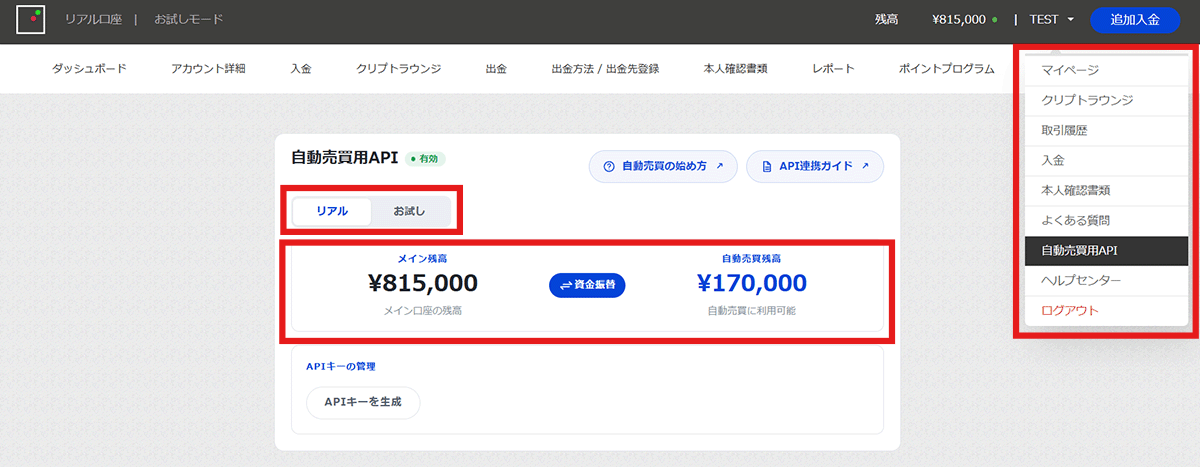
The Automated Trading API page: the Live tab shows the two balances.
Fund the automated account Important
Live API orders use the automated trading balance. Depositing into the main account alone is not enough; transfer the amount you intend to use to the dedicated account.
Why a transfer is needed
Dedicated balances and history help you distinguish manual and automated trading. Orders require sufficient automated funds. Decide on an amount within your capacity to absorb losses.
-
Open Transfer on the Live tab
Check both balances and select Transfer between them.
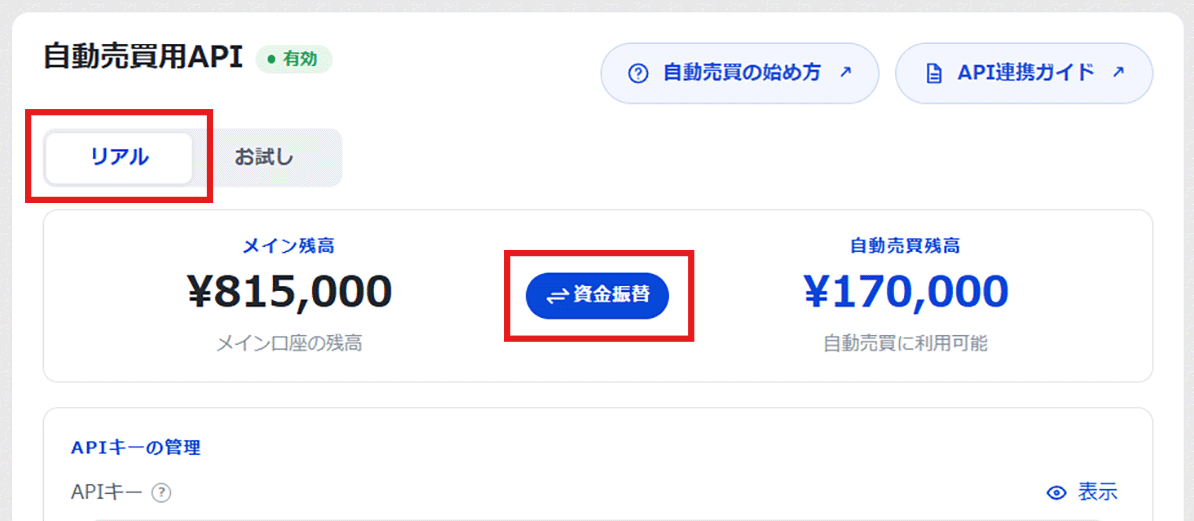
The Transfer button between main and automated balances. -
Confirm the source, destination and amount
Set Main as the source and Automated Trading as the destination. Enter the amount, review the details and confirm the transfer.
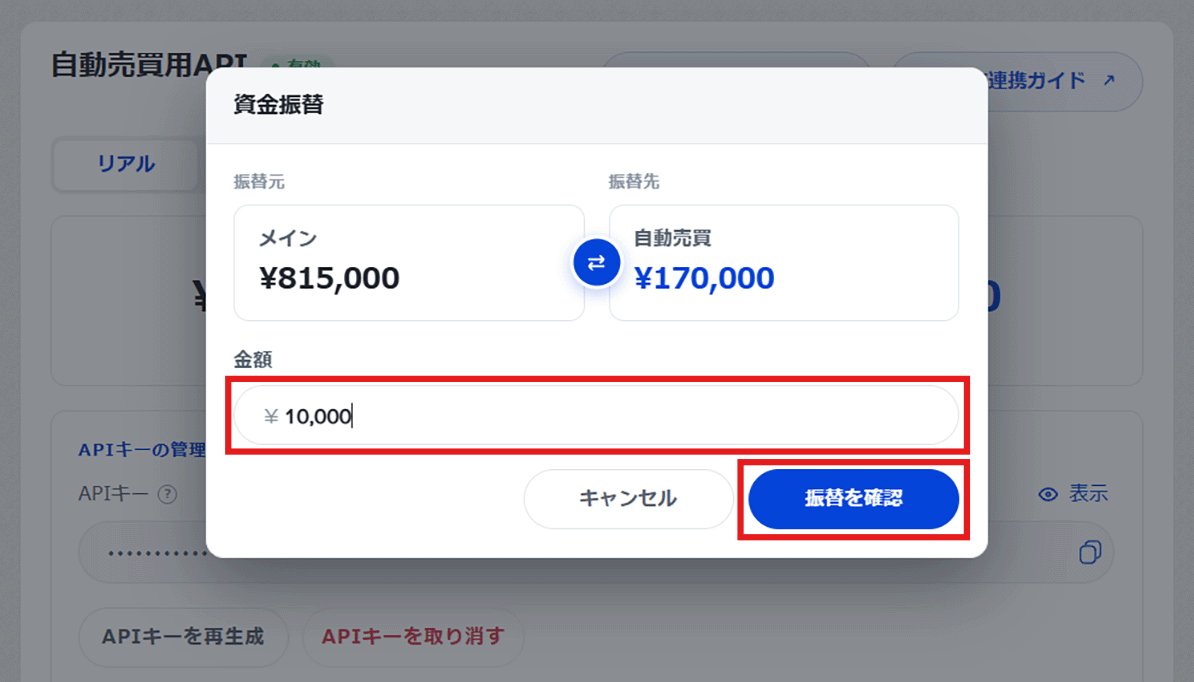
Check Main as the source and Automated Trading as the destination before entering the amount. -
Check the updated automated balance
Return to the balance page and check that the transfer appears in the automated balance.
Create an API key Important
The API key is shown only immediately after creation. Copy and store it securely before closing the screen. Do not disclose it to third parties. There is no need to send the key to AMT support either.
-
Create a key on the Live tab
For a live key, select Generate API Key on the Live tab. Read and accept the terms, then generate the key. For a demo key, see the Trial instructions below.
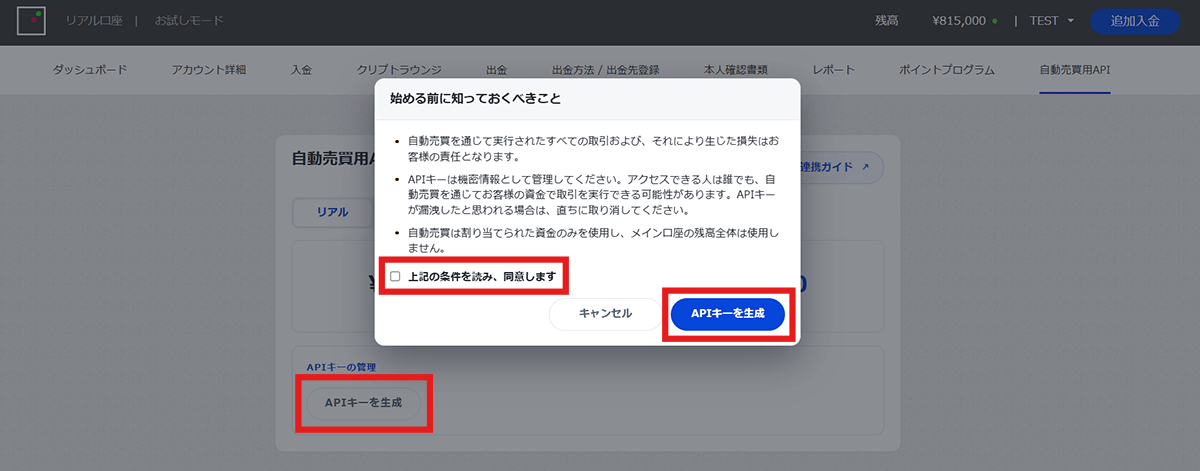
Select Generate API Key, accept the terms and generate the key. -
Copy and keep the displayed key
Copy the displayed key into a secure location such as a password manager. You cannot display the same key again after closing the screen.
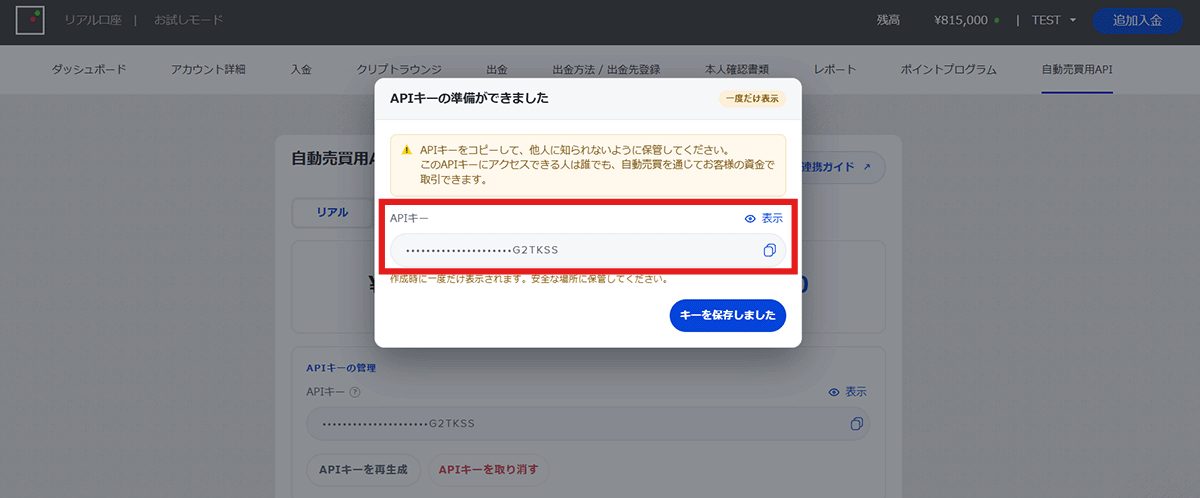
The newly issued API key: store it securely before closing.
Regenerate or revoke a key
If a key is lost or may be exposed, revoke it in The Option and create a new one. Revocation takes effect immediately. Delete the registered key for that environment in AMT before registering the replacement.
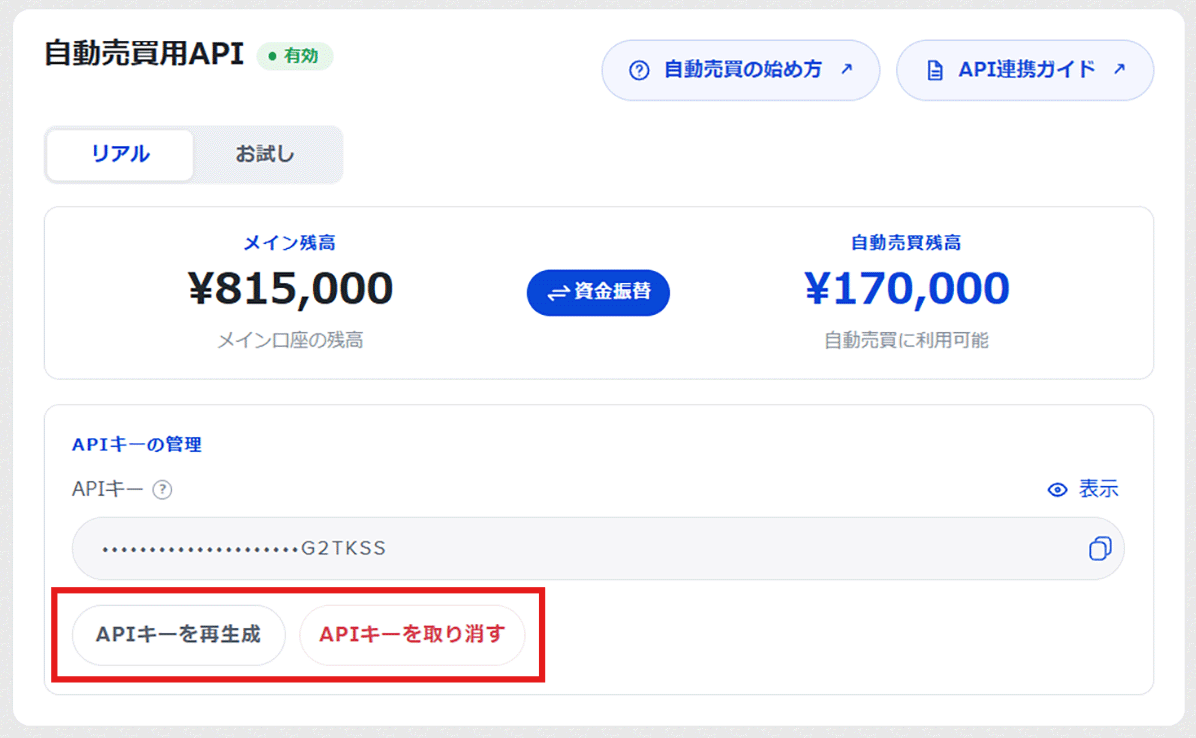
Register the key in AMT
-
Open an AMT version supporting the official API
Open the latest AMT, select The Option official automated trading API and open Trade Settings.
-
Register the key for the correct environment
Paste the key into Demo API Key or Live API Key and press that field's Register button. Use trial keys for demo and live keys for live trading. Registration saves immediately; the common Save command is unnecessary.
-
Check registration and trading mode
A registered key is masked except for its last six characters; short keys are fully masked. Registration alone does not confirm API authentication. Start by selecting Demo on the control panel and reviewing your settings.
-
Check the connection, balance and order settings in demo
Start in demo mode and check the connection and balance. Orders can be triggered by your configured rules after starting, so review alert settings and amounts too. Check the AMT system log for connection failures or order rejections.
API keys registered in AMT are stored securely on your computer.
Test in Trial mode first
The Trial environment lets you test API connections and orders with virtual funds. It uses a separate trial API key and does not affect live balances.
-
Create a key on the Trial tab
Select Request API Key, accept the terms and generate it. Copy and store the key securely.
-
Add practice funds with Top Up
Use Top Up on the Trial page to add virtual funds for practice.
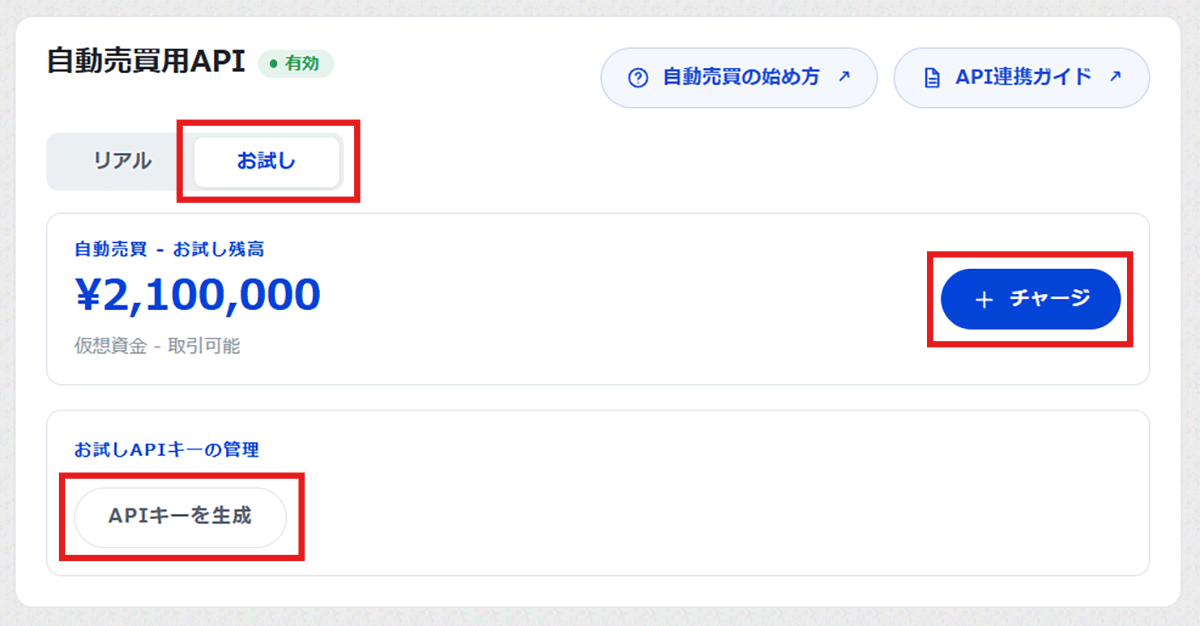
Use Top Up on the Trial tab to add virtual practice funds. -
Register it as the Demo API Key in AMT
Follow Step 4 and test account information, orders and settlement results in demo. Also verify error handling and check for duplicate orders with your own settings.
Before switching to live, check the live key and dedicated balance, stop AMT, then change the trading mode. You do not need to delete or overwrite the demo key.
API precautions
- Keep API keys out of emails, chats, social posts and public code. Do not include keys in support requests.
- Revoke the key promptly in The Option if exposure or misuse is suspected. An exposed key could let someone else trade on the account.
- Live results can differ from backtests or demo results. Review funds and settings regularly and operate within your loss tolerance.
Frequently asked questions
I closed the screen without saving my key.
The same key cannot be displayed again. Regenerate it in The Option, delete the old environment key in AMT and register the new one.
AMT is connected, but no orders are placed.
Check the automated balance, selected demo/live mode, alerts and order conditions. Insufficient funds is only one possible cause; check the AMT system log for the specific reason.
Can I use the same key for demo and live?
No. Create separate keys for each environment in The Option and register them in the matching Demo API Key and Live API Key fields in AMT.
Where can I find API specifications?
The Option official API integration guide
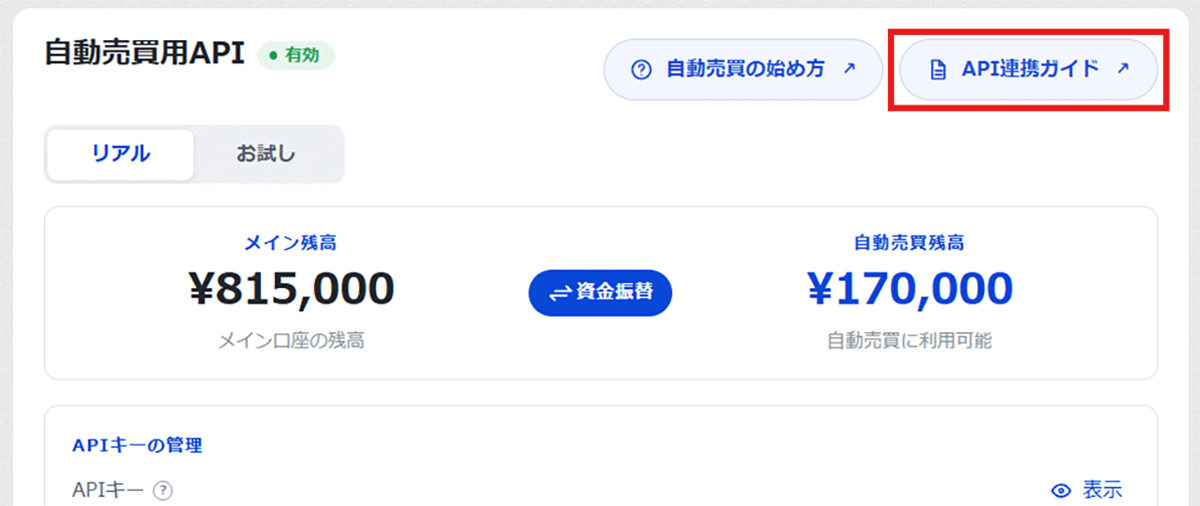
Source and screenshots: The Option help: Getting started with the automated trading API