Connect alerts to entry processing
Replace the manual entry action after each alert with AMT processing based on your settings.

For users of MT4, MT5 and TradingView signal tools
Automated entry integration for binary options · Windows application
AMT is a Windows application that receives alerts from your own signal tools and enables automated trading on supported platforms. It places entries automatically according to the conditions you configure.
Start with a free demo to see how your signals and settings work together.
Check how it works with a free demoContinue to account registration. You need a Windows PC and a signal tool that generates alerts.
AMT does not generate trading signals. It does not guarantee profits, win rates or successful order execution.
Automated trading on supported platforms
AMT enables automated trading on the platforms below. Connect your signal tool to your trading platform through AMT to automate entry operations after an alert.
AMT receives alerts from MT4, MT5, TradingView and other supported sources, then automatically places entries on your selected supported platform according to settings such as instrument, direction and amount.
Supported trades, accounts and usage conditions vary by AMT version and trading platform. Check your own signals and settings with a free demo before use.
From alert to entry
Send alerts from MT4, MT5, TradingView or another source using a supported method.
AMT compares the received alert with the instrument, direction and other conditions you have set.
When conditions match, AMT performs entry processing. Review the recognized alert and the result in history and logs.
Receiving methods and settings vary by source and connected service. Network conditions or the state of the trading service may prevent an order from being executed.
Three changes to your manual workflow
Replace the manual entry action after each alert with AMT processing based on your settings.
Configure alert text and trading conditions, then check the integration with your own signals.
Use history and logs to check which alerts were received and what processing took place.
System and connection requirements
You need a Windows PC, a signal tool that generates alerts and access to a supported trading service. The AMT application cannot run on a smartphone alone.
System requirements and downloadBabaOption / The Option / Bi-Winning / Astro / Bubinga / FiveStarsMarkets
BabaOption lets you select a supported account currency. The other connected services support JPY accounts. Check the restrictions and support status for each service in your AMT version and the help pages.
Verify operation in your own environment before purchasing. Connection support does not imply an official partnership with a service or its availability in your region.
Information to help you decide
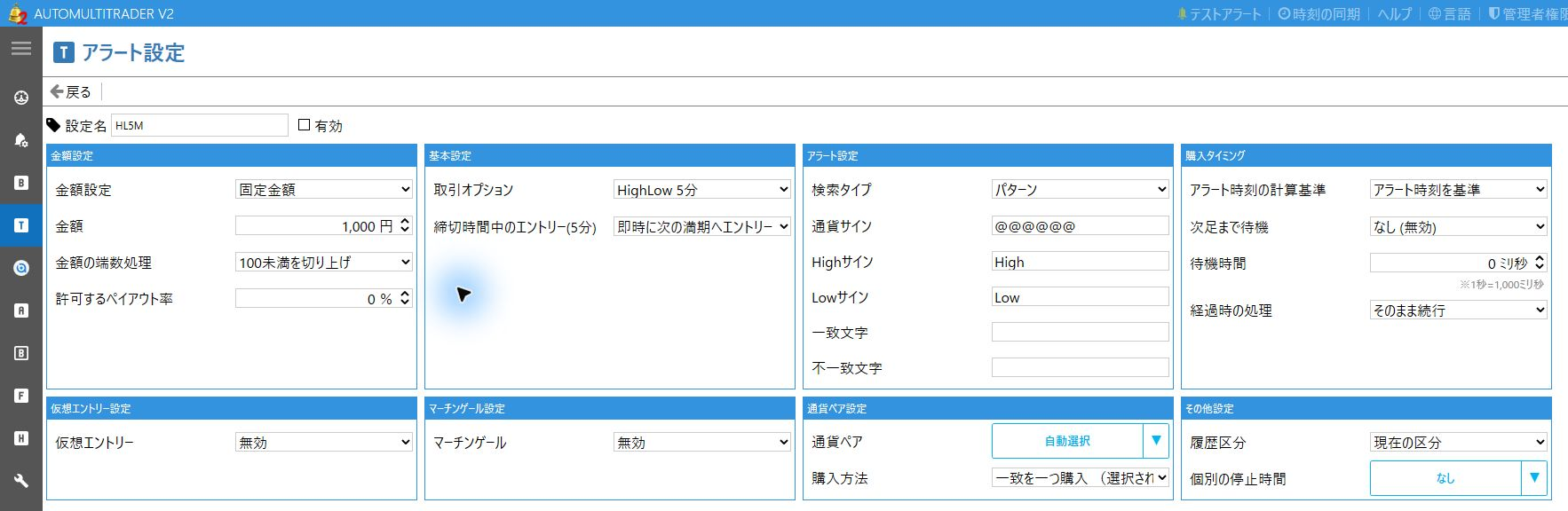
This page shows AMT's alert settings screen. Review recognition and trading conditions, then try them in your own environment after setup.
Enlarge imageReview the official website's updates for current support information and changes.
View updatesUse the help pages and contact form if you have questions about installation or configuration.
View helpGetting started with the free demo
All AMT features can be tried for free in demo trading. Check the requirements and settings, then review alert recognition and processing results.
Check how it works with a free demoContinue to account registration. You need a Windows PC and a signal tool that generates alerts.
Complete account registration, including email verification, then install AMT on a supported Windows PC.
Make sure demo trading is selected, then connect your signal tool and configure the required settings.
Check recognized alerts and processing results. If you are considering real trading, review pricing and usage conditions first.
Demo operation and trading results do not guarantee the same behavior or results with a real account. You also need to maintain your PC and network and monitor operation.
Read the full setup guide Already have an account?Pricing and licenses
Review pricing, license duration and renewal conditions before choosing the license that suits you.
Free
All AMT features are available to check for free in demo trading. Separate costs may apply for a PC, signal tools, internet access and external services.
Check current pricing, billing currency, license duration and tax treatment on the pricing and licenses page. Confirm the final payment total during checkout.
Recurring payment plans renew automatically. Check renewal intervals and pricing, cancellation and refund conditions on the pricing page and in the terms of use.
If a referrer provided a code or link, check its application status and the resulting price on the purchase page.
Check pricing and licensesBefore you get started
You need to sign in to your AMT account to contact support.
No. You need a separate signal tool that generates alerts. AMT connects received alerts to entry processing according to the conditions you configure.
You can try all features for free in demo trading. Check recognized alerts and processing results with your own PC, signals and connected service.
The AMT application requires a Windows PC. Even if you are reading this page on a smartphone, installation and operation must take place on a supported PC.
No. Compatibility depends on the alert output method and content, the connected service and your settings. Check supported receiving methods and try the free demo.
The same behavior or trading results are not guaranteed. Account and service conditions, network connectivity and settings can differ, so check each environment separately.
No. Monitor your PC, network and connected service during use. Network interruptions, settings or changes to a service's specifications may prevent processing.
Review installation and configuration instructions in the help pages. If your question remains unresolved, sign in to your AMT account and contact support.
See the guidance on the pricing and licenses page. Contact support if you have questions about purchasing.
Review what AMT does and its requirements, then check recognition and processing results using your own signals.
Check how it works with a free demoContinue to account registration. You need a Windows PC and a signal tool that generates alerts.
You need a Windows PC, a signal tool that generates alerts and a supported demo environment. AMT does not guarantee profits or win rates.