Help & Guide
Individual Stop Settings
AMT lets you configure “Stop settings” to temporarily suspend automatic entries during specific times or days.
Normally, a stop setting applies to every trade. By clearing “Apply to all”, you can associate an individual stop schedule with a particular currency pair (each alert setting).
Normally, a stop setting applies to every trade. By clearing “Apply to all”, you can associate an individual stop schedule with a particular currency pair (each alert setting).
This is a powerful way to precisely customize stop periods for each currency pair.
How “Apply to all” differs from individual stop settings
Stop settings have the following two modes, depending on their scope.
| Mode | Behavior |
|---|---|
| Apply to all Global stop | “Apply to all” is selected. During the active period, all automatic entries are completely stopped, regardless of alert settings or currency pair. |
| Individual stop setting Local stop | “Apply to all” is cleared. This stop setting does not operate on its own. Associate it as an “Individual stop setting” in a specific alert setting to apply the stop period only to that alert setting (currency pair). |
■ Steps for individual stop settings
As an example, the following explains how to apply a specific stop period only to the USD/JPY alert setting.
Step 1: Add a currency-specific stop setting
Open AMT “Stop settings”, select “+ Add” to create a new stop setting, and configure the days and time period to stop.(For example, give it a recognizable name such as “Stop for USDJPY”.)
Step 2: Clear “Apply to all” and save
Open the stop setting created in Step 1, clear “Apply to all”, and select “Save”.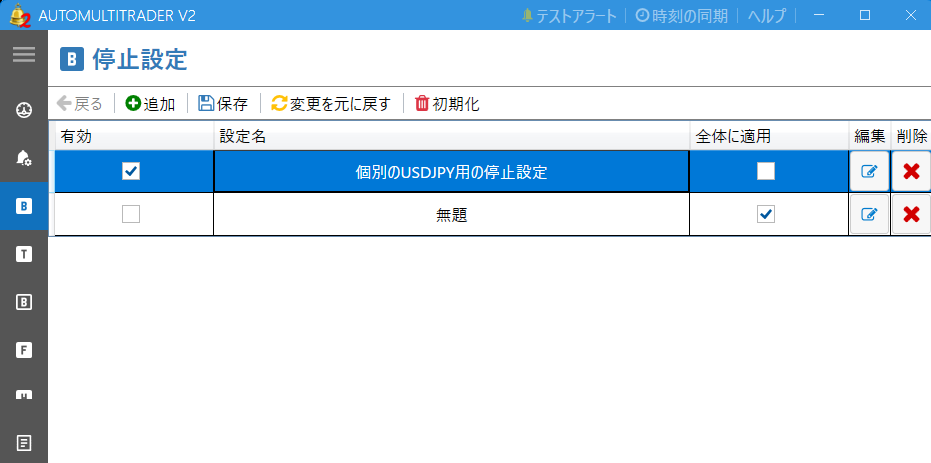
If you do not clear “Apply to all”, the stop will be applied uniformly to every alert. Always clear it before saving.
Step 3: Add a setting for each currency pair to alert settings
Open “Alert settings” and create an alert setting for the target currency pair (for example, USDJPY).Create independent alert settings for each currency pair before configuring individual settings.
Step 4: Associate the stop setting with the alert setting as an individual stop setting
Select the blue Edit button for the alert setting created in Step 3, then select “Individual stop settings” in detailed settings.From the displayed list, select the stop setting created in Steps 1 and 2 (for example, “Stop for USDJPY”).
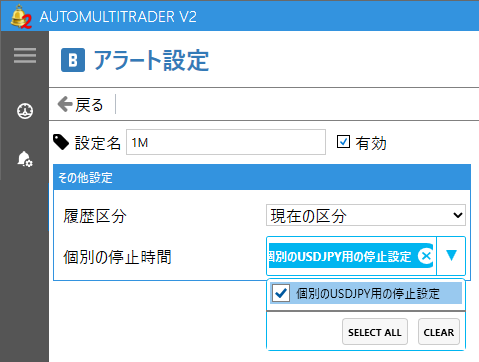
Step 5: Save the alert setting
After selecting it, select “Save” in the alert setting to finish.Only USDJPY entries detected by that alert setting will then stop automatically during the specified period.
This setup is somewhat complex, but it lets you avoid entries for only selected currency pairs during economic announcements or other specific periods, enabling more precise automated trading.